Camera language
Camera Shot Types: A Practical Guide to Framing, Angles and Movement for AI Video
Three reference tables and concrete prompt examples help you describe what the audience sees, where the camera sits and how it moves.
On this page
Separate framing, angle and movement
Shot size describes how much of the subject is visible. Angle describes where the camera looks from. Movement describes how that viewpoint changes. “Close-up, low angle, slow push-in” can describe one shot, but the terms are not interchangeable.
Use these as working descriptions, not commands a model is guaranteed to obey. Decide what the viewer needs to notice, then choose one main movement. Check that the result keeps the important action visible. The shot-list guide covers how to organize the fields.
Shot sizes: decide what the viewer needs to see
For a character discovering a letter, a medium shot can establish the character beside the desk, followed by a close-up of the envelope. Give each shot one piece of information rather than asking a single clip to cycle through every framing.
| Shot size | Purpose | Prompt example |
|---|---|---|
| Wide shot | Establish space and placement | Wide shot of a character at the end of an empty station platform |
| Full shot | Show full-body action | Full-body framing as the character walks from the door to the desk |
| Medium shot | Balance expression and gestures | Waist-up medium shot as the character places an envelope on the desk |
| Medium close-up | Emphasize a reaction | Chest-up framing; the character pauses, then looks up |
| Close-up | Isolate an expression or clue | Close-up of the envelope, a finger resting on the seal |
| Extreme close-up | Reveal a small detail | Extreme close-up of the eyes and damp lashes |
Examples describe framing intent; results depend on the model and inputs.
Angles: specify the viewpoint
For a conversation, specify the characters' orientation and eyelines across neighboring shots. “Cinematic” does not tell the model where the viewer is standing.
| Angle | Story use | Prompt example |
|---|---|---|
| Eye level | Read an expression directly | Eye-level view; the character looks screen right |
| Low angle | Emphasize stature or height | Low-angle view of the character beneath a doorway |
| High angle | Show the subject within the space | High-angle view of the character alone at the desk |
| Over the shoulder | Establish a conversation | Look past the foreground character's shoulder toward the other speaker |
| Overhead | Show an arrangement | Overhead view of the desk, an envelope between two hands |
An angle alone does not establish mood; describe the action and setting too.
Movement: distinguish rotation, travel and zoom
A pan turns the camera's view; a tracking shot moves with the subject. A push-in changes camera position, while a zoom changes focal length. Describe the starting view, ending view and pace instead of stacking movement terms.
| Movement | Prompt example | What to check |
|---|---|---|
| Locked-off | Static camera; the character enters and stops | Does the background stay stable? |
| Pan | Slow pan right from the window to the desk | Does the view turn in the intended direction? |
| Tilt | Slow tilt up from the letter to the character's face | Are both the starting and ending subjects visible? |
| Push-in | Slow camera push-in, ending in a medium close-up | Does the subject remain in frame? |
| Tracking | Camera tracks alongside the character down a corridor | Do subject and environment remain coherent? |
| Zoom | Fixed camera position, slow zoom to the envelope | Does the camera travel when it should stay put? |
Start with one main movement per shot; test complex combinations separately.
Put the description in the storyboard, then test a shot
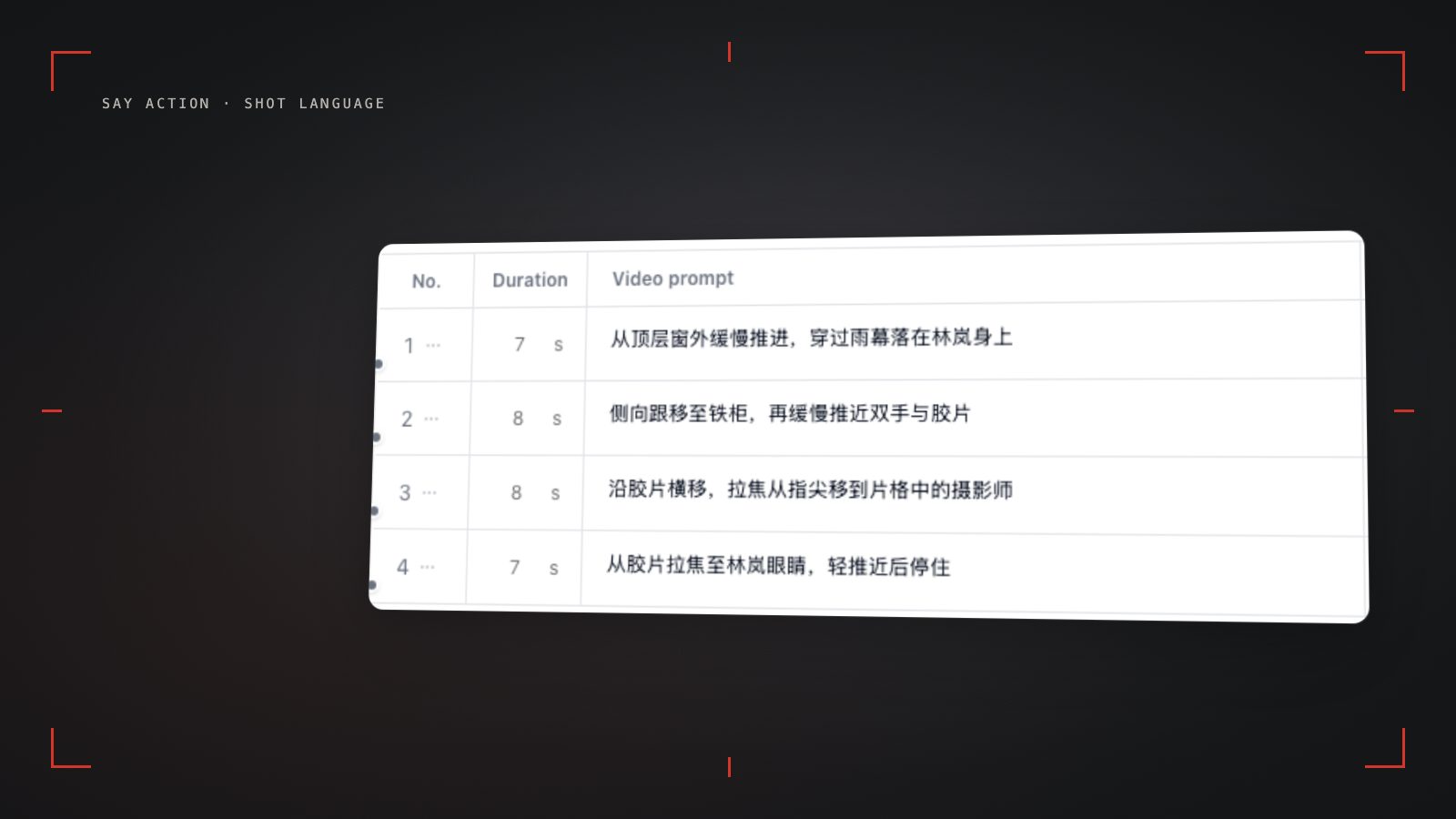
In the canvas storyboard, edit the target row: use “eye-level medium shot, character to the left of the desk” for the image prompt and “static camera; the character turns the envelope over” for the motion prompt. Create a video node from that row, then check the model, input image and duration before generating.
If the model adds an unwanted push-in, revise the motion description and redo that shot. A completed task is not proof that the shot serves the story. Review gestures, eyelines and cropping before proceeding.
Connect your own API channels and third-party relays
In model-channel settings, enter the Base URL and API key, then configure the protocol, model IDs and required headers from your provider's documentation. Check the image and video modes you need before generating. Paths, resolutions and first/last-frame inputs depend on the connected channel. An adaptation request for an unsupported channel is not a compatibility guarantee.
BYOK supports a custom API endpoint, model key and headers. For OneAPI, NewAPI or another relay, select the OpenAI, Gemini or Claude protocol that matches its actual API, then check model IDs and image/video endpoint support. Not every relay or private protocol works automatically. BYOK model calls have no platform model markup or platform generation-credit deduction; workspace access and provider usage are still billed separately.
Connect only trusted providers and use HTTPS in production. Custom requests are forwarded through the authenticated backend; required prompts, reference assets and credentials take part in the request. Never put API keys, passwords or secret-bearing headers in public canvases, screenshots or support requests.
Frequently asked questions
Are shot size and camera angle the same?
No. Shot size controls how much of the subject is visible; angle describes the viewpoint. Use both when needed.
Will a model always follow a push-in prompt?
No. The model, reference image and clip duration affect the result. Test one shot and inspect it.
How are credits handled for failed generation?
When the upstream explicitly reports failure, reserved credits are refunded; tasks with unclear network status stay pending review to avoid double settlement.
Can I connect OneAPI, NewAPI and custom headers?
BYOK supports a custom API endpoint, model key and headers. For OneAPI, NewAPI or another relay, select the OpenAI, Gemini or Claude protocol that matches its actual API, then check model IDs and image/video endpoint support. Not every relay or private protocol works automatically. BYOK model calls have no platform model markup or platform generation-credit deduction; workspace access and provider usage are still billed separately.