
Creative workflows
Vertical Drama Production with AI: Plan a 9:16 Short Series in Say Action
Plan a vertical short drama from episode beats and dialogue through shot lists, framing, character references and an editing handoff, with clear limits for models and platform delivery.
On this page
- Is an AI-assisted vertical drama workflow right for your project?
- Shape the episode around a beat, a choice and a next-scene question
- Turn dialogue and action into a reviewable shot list
- Compose for 9:16 while leaving room for captions and interface overlays
- Use character references as guidance, then check continuity shot by shot
- Review the episode package, costs and handoff before editing
- Connect your own API channels and third-party relays
Is an AI-assisted vertical drama workflow right for your project?
A vertical short drama benefits from planning when each episode depends on a reveal, a reaction or a visual detail that must read on a phone screen. A script-to-shot workflow can help a small creative team organize dialogue, coverage, reference images and generated clips in one place. It is useful for preparing a proof of concept, a pitch sequence or footage for an editor; it does not remove the need to write, direct, review or edit.
This approach is less suitable when you need a finished, platform-ready episode without editorial work, when a production requires controlled live-action performances, or when every shot must meet a delivery specification that your selected model cannot provide. ReelShort and DramaBox may be familiar references for serialized vertical-drama viewing, but they are mentioned only as style context. Say Action is not affiliated with them, does not upload episodes to them and cannot promise that a platform will accept a particular export.
Shape the episode around a beat, a choice and a next-scene question
Before writing prompts, decide what changes during the episode. A compact dramatic unit can introduce a want, put an obstacle in its way, force a choice and end on a question or reveal that gives the next scene somewhere to go. These are writing prompts, not a fixed formula. Keep the causal link between beats visible: the next scene should follow from a decision, discovery or consequence rather than arrive only because the episode needs another cliffhanger.
For a practice example, imagine a courier who finds a second key inside a returned parcel. The beat sheet can distinguish what the audience sees, what the courier says, what remains unexplained and what the final image should make viewers ask. Mark the exercise as fictional, then expand only the moments that need a reaction, a prop insert or a change in location into scenes. This gives the storyboard a dramatic purpose before shot count or visual polish becomes the focus.
Turn dialogue and action into a reviewable shot list
Separate spoken dialogue from action and visual information. For each scene, note who is present, what changes, where the eye should go and which line carries the turn. Then break the scene into shots with a clear job: establish the space, show a reaction, reveal a clue or preserve a screen direction. A shot list can record framing, camera movement, performance intention, dialogue, props, continuity notes and the image or motion prompt that will guide the next step.
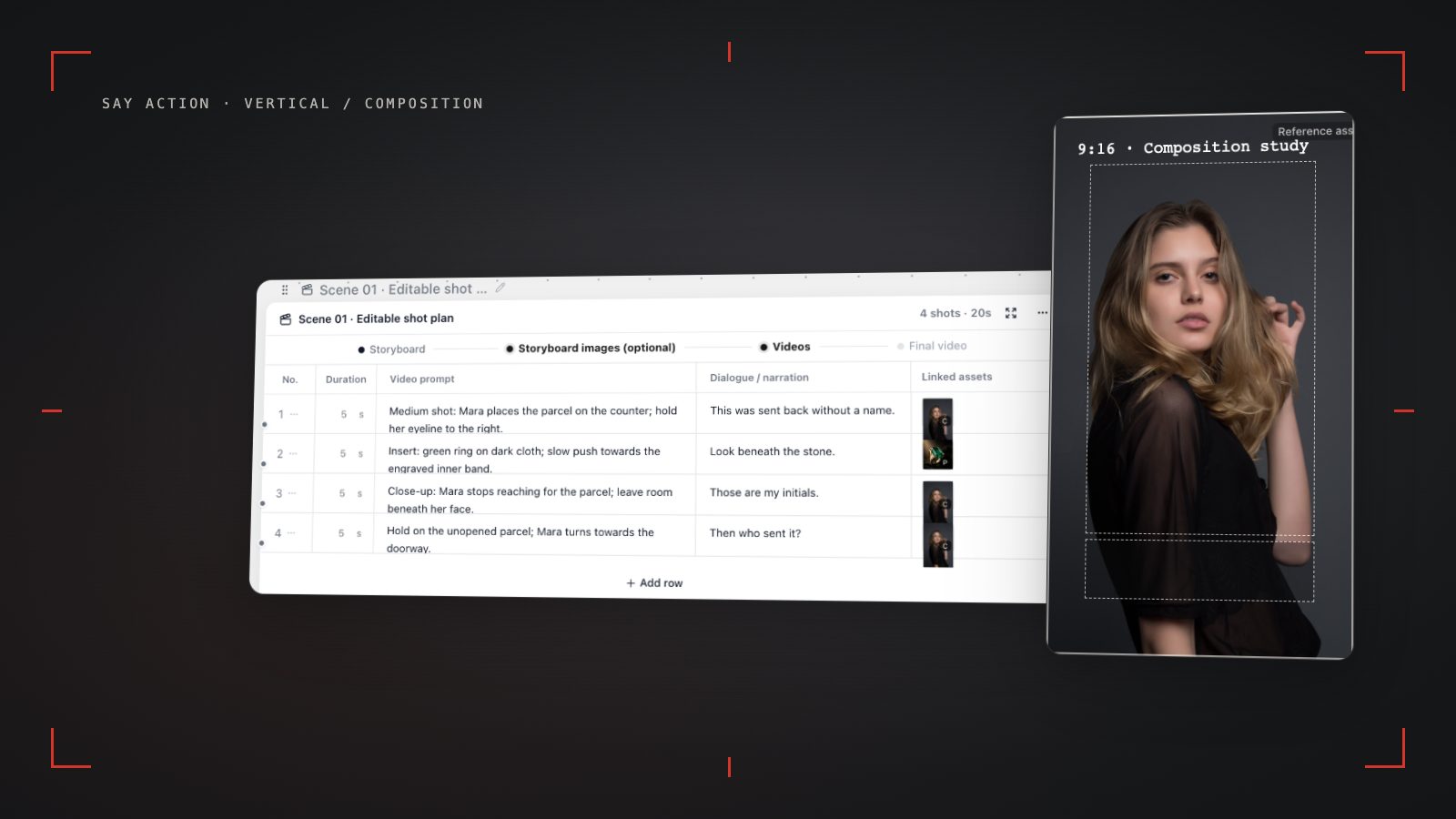
In Say Action, a script can be organized into an editable storyboard or shot table on the canvas. Treat the generated breakdown as a draft: check whether a line has been assigned to the right speaker, whether an action is visually possible and whether neighboring shots cover the moment you need. Keep a line of dialogue intact when timing and meaning depend on it; split it only when the performance or edit calls for a reaction or an insert. For deeper setup, see the linked script-to-storyboard workflow.
Compose for 9:16 while leaving room for captions and interface overlays
A portrait frame changes blocking and emphasis, not just the crop. Place faces, hands and story props where they remain legible in a narrow composition; use foreground and background deliberately, and decide whether a two-person exchange needs alternating close shots instead of a wide master. Leave working space for subtitles and app controls, but do not treat one universal safe-area diagram as a platform guarantee: caption position, buttons and overlays vary by service, device and placement.
Choose the aspect ratio and input options from the specific video model and generation path you plan to use. Some models or modes may offer portrait output, while others expose different ratios or constraints; support can change, and a reference frame does not guarantee that every generated frame will preserve the intended composition. Review the actual result at phone size, check that subtitles do not cover a clue or expression, and reframe or regenerate individual shots when needed. The 9:16 guide explains framing considerations in more detail.
Use character references as guidance, then check continuity shot by shot
Create a compact character sheet before generating scene imagery: describe age range, silhouette, hair, wardrobe, distinguishing accessories and the details that matter to the story. Select reference images that show those details clearly, and attach them to the shots where they are relevant. For a multi-scene episode, note intentional changes such as a wet coat or a missing earring so the review can distinguish a story choice from visual drift.
Reference images and first or last frames can guide a model when that model supports those inputs, but they do not lock a face or guarantee identical clothing, props or lighting across cuts. Compare neighboring shots for face shape, costume, hand position, screen direction and object placement. Keep a continuity note beside any accepted variation, and revise the reference or prompt only for the affected shot. The character-reference guide covers model-specific considerations and review points.
Review the episode package, costs and handoff before editing
Before handing material to an editor, gather the approved script and shot list, selected reference images, generated clips, a scene order, dialogue or subtitle text, music and sound notes, and a short list of unresolved continuity choices. Use clear filenames or shot identifiers so a clip can be traced back to its scene. Watch the sequence in order, check for missing reactions and mismatched screen direction, and confirm the intended frame and audio behavior in the editing application.
Credits are estimated from channel pricing; final deduction follows the price tiers configured in the admin backend. Per-second video billing is pre-authorized by requested seconds; if upstream output exceeds the request, a small concession difference may occur. When the upstream explicitly reports failure, reserved credits are refunded; tasks with unclear network status stay pending review to avoid double settlement. The service fee covers the workspace, not model usage. Provider API charges are separate. BYOK supports a custom API endpoint, model key and headers. For OneAPI, NewAPI or another relay, select the OpenAI, Gemini or Claude protocol that matches its actual API, then check model IDs and image/video endpoint support. Not every relay or private protocol works automatically. BYOK model calls have no platform model markup or platform generation-credit deduction; workspace access and provider usage are still billed separately.
Connect your own API channels and third-party relays
In model-channel settings, enter the Base URL and API key, then configure the protocol, model IDs and required headers from your provider's documentation. Check the image and video modes you need before generating. Paths, resolutions and first/last-frame inputs depend on the connected channel. An adaptation request for an unsupported channel is not a compatibility guarantee.
BYOK supports a custom API endpoint, model key and headers. For OneAPI, NewAPI or another relay, select the OpenAI, Gemini or Claude protocol that matches its actual API, then check model IDs and image/video endpoint support. Not every relay or private protocol works automatically. BYOK model calls have no platform model markup or platform generation-credit deduction; workspace access and provider usage are still billed separately.
Connect only trusted providers and use HTTPS in production. Custom requests are forwarded through the authenticated backend; required prompts, reference assets and credentials take part in the request. Never put API keys, passwords or secret-bearing headers in public canvases, screenshots or support requests.
Frequently asked questions
Can I make a ReelShort-style drama with Say Action?
You can use Say Action to plan a serialized vertical-drama workflow, organize a script into shots and prepare image or video assets with the models available to your project. ReelShort is only a style reference here; there is no affiliation, platform upload or acceptance guarantee, and a finished episode still needs human review and editing.
Do all video models support 9:16?
No universal model capability should be assumed. Available aspect ratios and reference inputs depend on the selected model and mode, so check the options shown for that generation path and inspect the output before building the edit around it.
How should I plan dialogue and subtitle space?
Keep dialogue attached to the shot where it is spoken, plan reaction and insert shots separately, and leave visual room for captions without covering a face, clue or important prop. Check the placement in the target editing and publishing context because platform overlays can vary.
Does Say Action publish episodes to drama platforms?
No. Say Action helps organize creative work and generate assets through supported models; episode editing, export checks and platform publishing happen outside the canvas. Confirm each destination's current specifications yourself.
Can I connect OneAPI, NewAPI and custom headers?
BYOK supports a custom API endpoint, model key and headers. For OneAPI, NewAPI or another relay, select the OpenAI, Gemini or Claude protocol that matches its actual API, then check model IDs and image/video endpoint support. Not every relay or private protocol works automatically. BYOK model calls have no platform model markup or platform generation-credit deduction; workspace access and provider usage are still billed separately.